Setup guide

Install & set up in about 2 minutes

Install the APK, then give the app the permissions it needs to see what you watch on YouTube. Screenshots are from a realme phone (Android 11). Menu names differ a little on Samsung, Xiaomi and Pixel, but the steps are the same.

Watch the whole setup (1:48), then follow the steps below.
1

Download & install the APK

  1. On your Android phone, tap Download APK. If Chrome asks, tap Download anyway.
  2. Open the downloaded file from the notification, or from Files → Downloads.
  3. The first time, Android asks to allow installs from your browser. Tap Settings and switch on Allow apps from this source (or Allow from this source), then go back.
  4. Tap Install.
You can switch "Allow apps from this source" off again after installing.
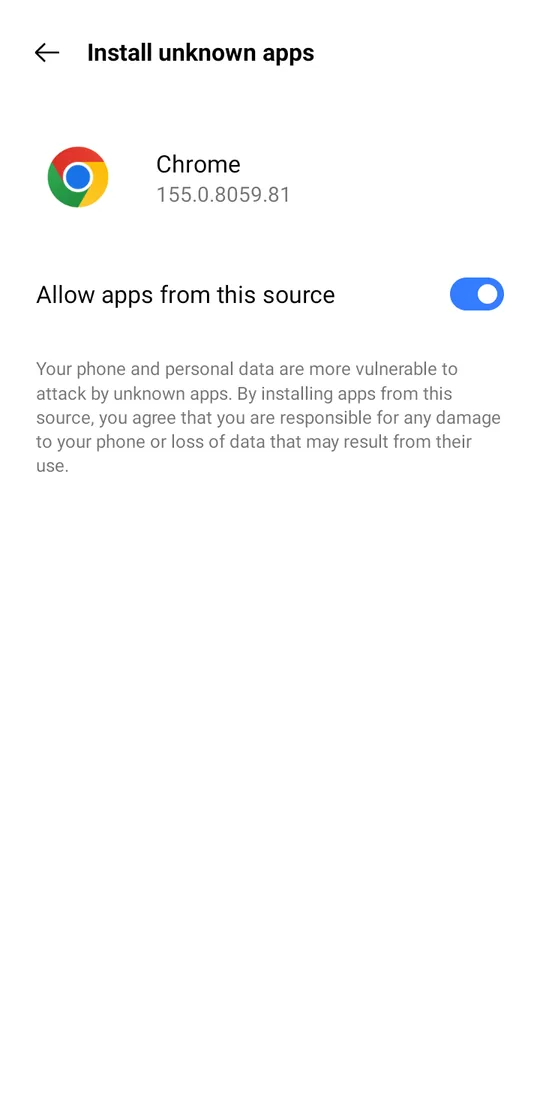
Install unknown apps: Allow apps from this source switched on for Chrome
2

If Play Protect blocks the install

Google Play Protect warns about apps from outside the Play Store that use Accessibility. You'll see something like "Blocked by Play Protect" or "Unsafe app blocked".

Option A: Install anyway try first

  1. On the warning, tap More details.
  2. Tap Install anyway.

Option B: Pause Play Protect while installing

If there's no "Install anyway" button:

  1. Open the Play Store, tap your profile picture (top right), then Play Protect.
  2. Tap the ⚙ gear (top right).
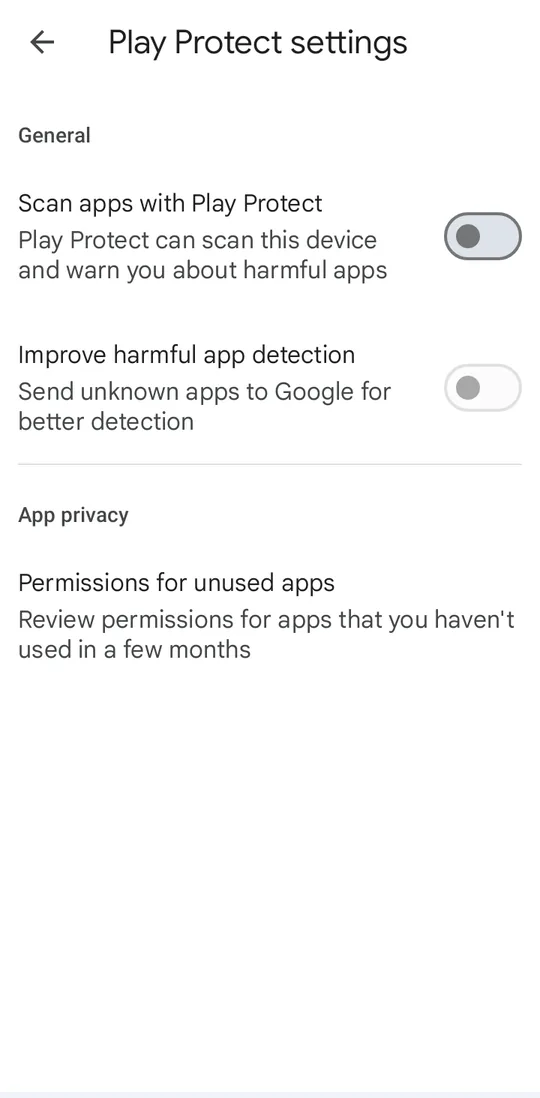
  3. Switch off Scan apps with Play Protect and confirm with Turn off.
  4. Install the APK again (step 1).
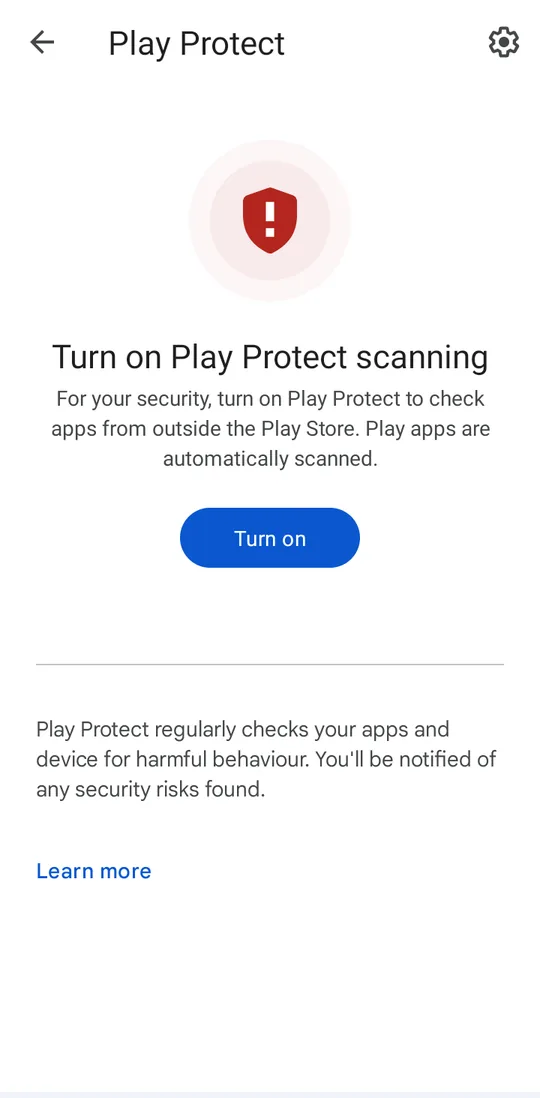
  5. Come back here and switch Scan apps with Play Protect back on.
Turning scanning back on won't remove YT Activity Tracker. If Play Protect later suggests uninstalling it, tap Keep app or Ignore.
Play Protect settings with Scan apps with Play Protect switch
Play Protect page with the Turn on button to switch scanning back on
3

Open the app

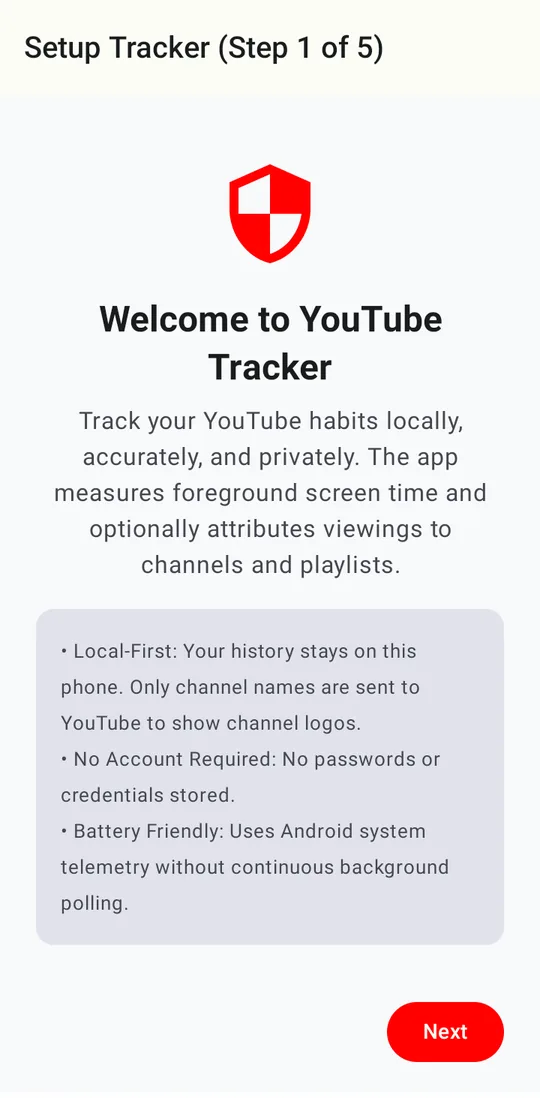
Open YouTube Activity Tracker. A short 5-step setup walks you through each permission. Tap Next to begin.

You can reopen it any time from Settings → Review Permission Setup.

Welcome to YouTube Tracker setup screen
4

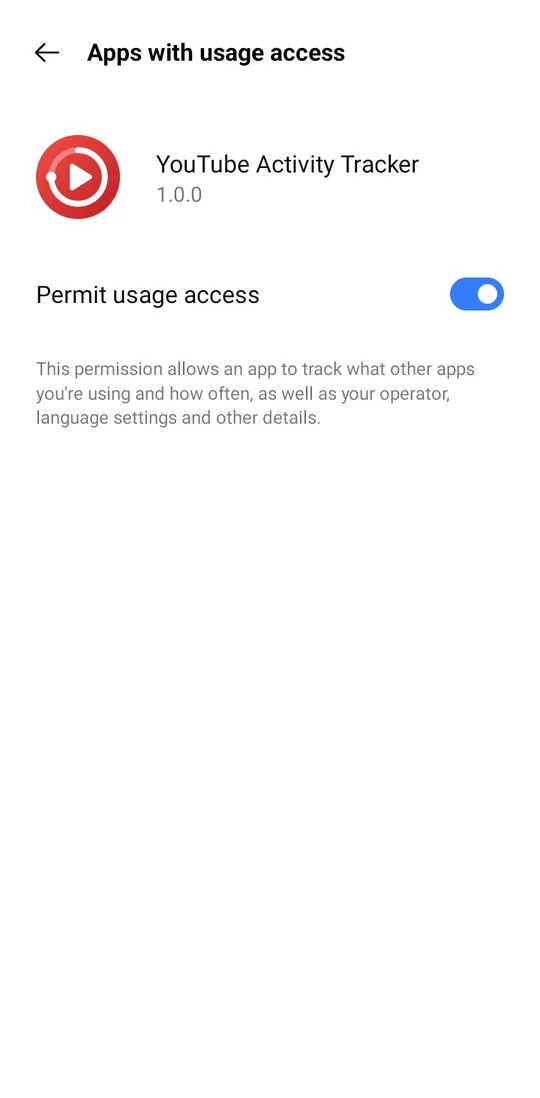
Usage Access required

Lets the app see when the YouTube app is open, to measure your screen time.

  1. Tap Open Usage Access Settings.
  2. Find YouTube Activity Tracker in the list and tap it.
  3. Switch on Permit usage access.
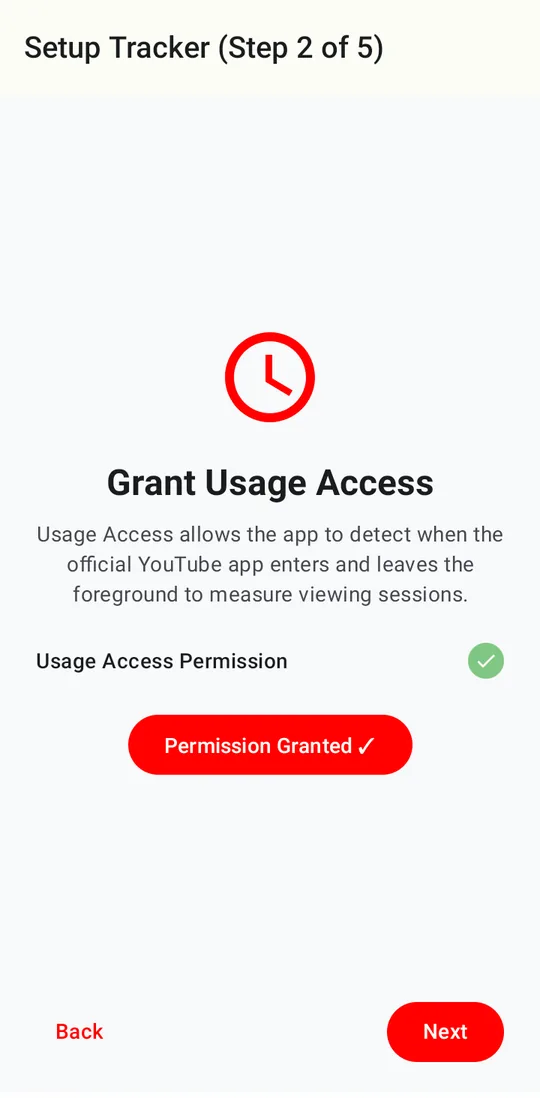
  4. Press back. The app shows Permission Granted ✓.
Grant Usage Access step in the app
Android Usage access page with Permit usage access switched on
5

Media Playback Access recommended

This is what tells the app which video and channel is playing and whether it's playing or paused. Without it you only get total YouTube time.

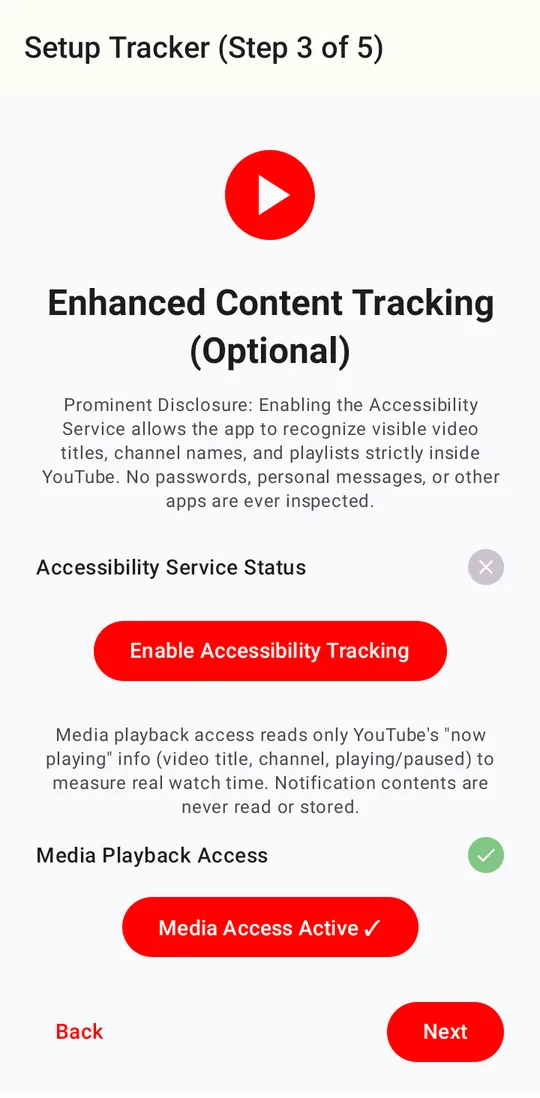
  1. On step 3 of the setup, tap Allow Media Playback Access.
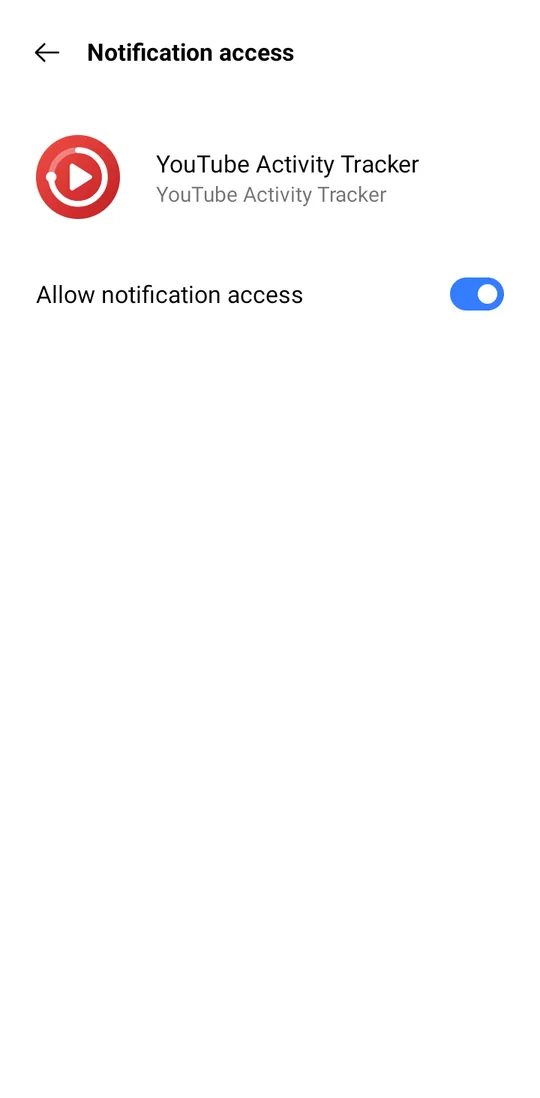
  2. Android opens Notification access. Tap YouTube Activity Tracker.
  3. Switch on Allow notification access and confirm with Allow.
Android calls this "notification access", but the app reads only YouTube's media info (title, channel, play/pause). Your messages and other notifications are never read.
Enhanced Content Tracking step with Media Playback Access
Notification access page with Allow notification access switched on
6

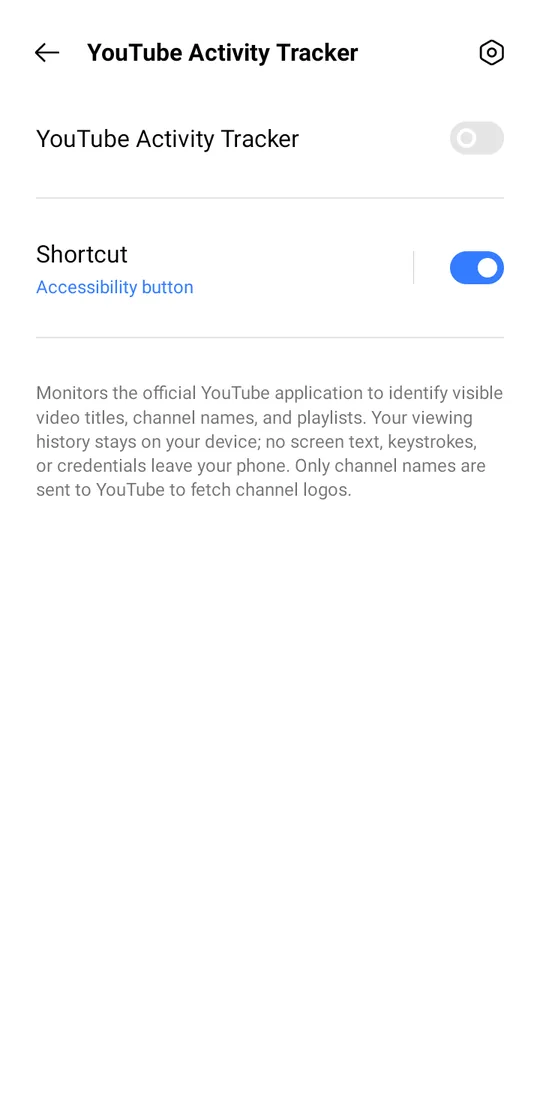
Accessibility optional

Lets the app recognise playlists, Shorts and ads from the text on the YouTube screen. It works only inside the YouTube app.

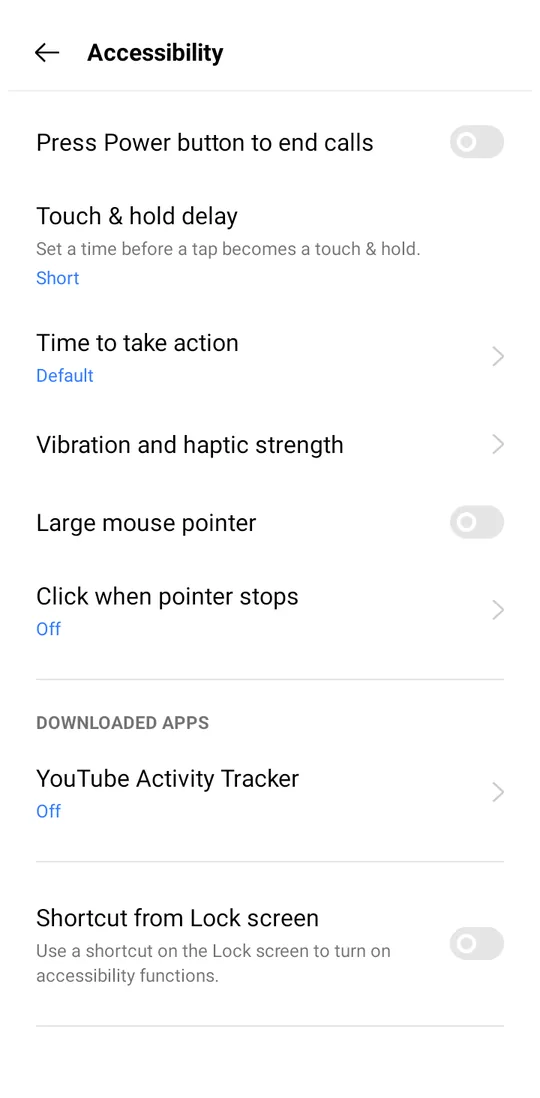
  1. On the same setup step, tap Enable Accessibility Tracking.
  2. Scroll to Downloaded apps (or Installed apps) and tap YouTube Activity Tracker.
  3. Switch it on and tap Allow.
Android 13+: "Restricted setting" message? Android blocks Accessibility for sideloaded apps until you allow it:
  1. Open Settings → Apps → YouTube Activity Tracker.
  2. Tap the ⋮ menu (top right), then Allow restricted settings, and confirm.
  3. Go back to Accessibility and switch the app on.
Accessibility settings with YouTube Activity Tracker under Downloaded apps
YouTube Activity Tracker accessibility switch
7

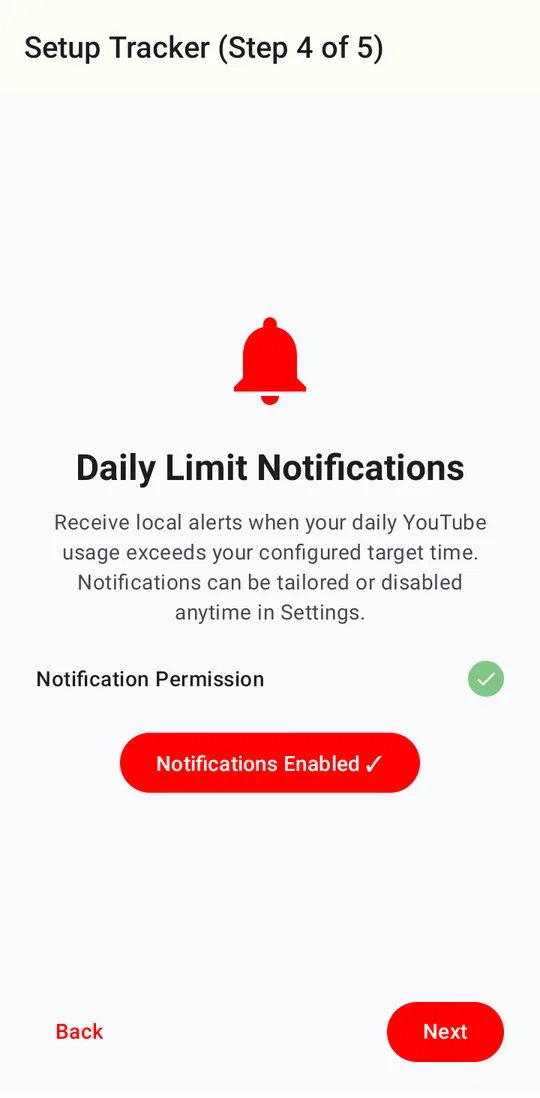
Notifications optional

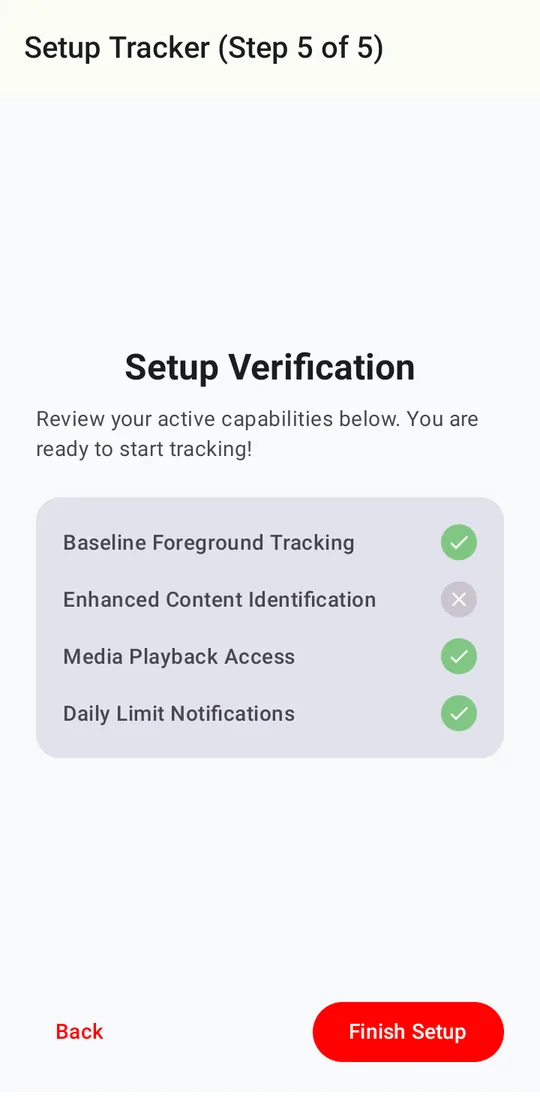
Needed only for daily limit alerts. Tap Configure Notifications and allow them. Then tap Next, check the summary, and tap Finish Setup.

Set your daily target later in Settings → Daily YouTube Target Limit.

Daily Limit Notifications step
Setup Verification summary
8

Keep it running in the background

Some phones close background apps aggressively. Long-press the app icon → App info, then:

  • realme / OPPO (ColorOS): Battery usage → allow Background activity and Auto launch.
  • Xiaomi / Redmi / POCO: Battery saver → No restrictions, and turn on Autostart.
  • Vivo / iQOO: Battery → allow High background power consumption.
  • Samsung: Battery → Unrestricted.
  • Pixel / others: App battery usage → Unrestricted.

Screen time is still read from Android's own records when you open the app, so you never lose time. This only keeps live video detection running.

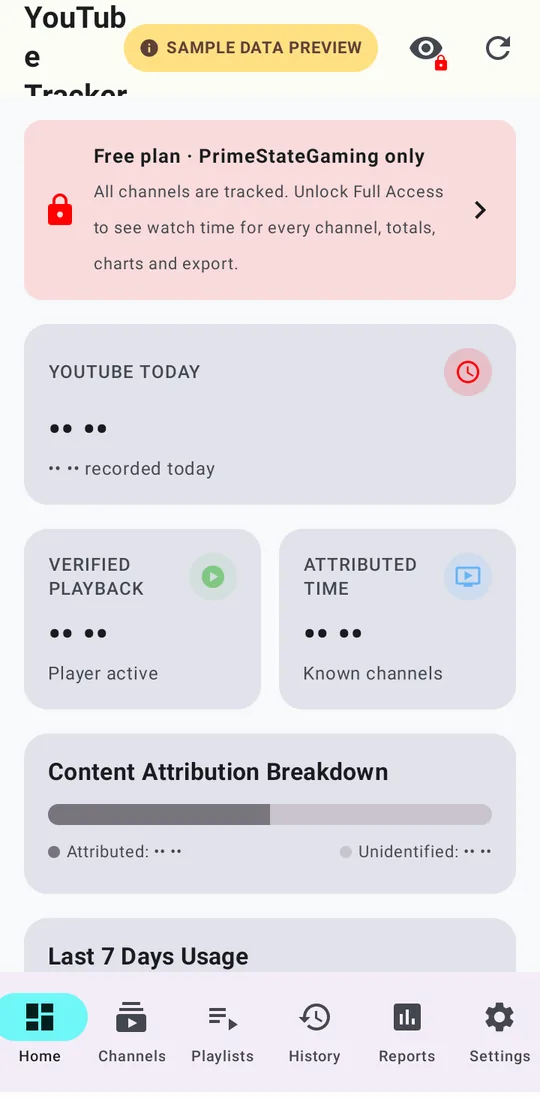
Dashboard on the free plan
9

Unlock Full Access optional

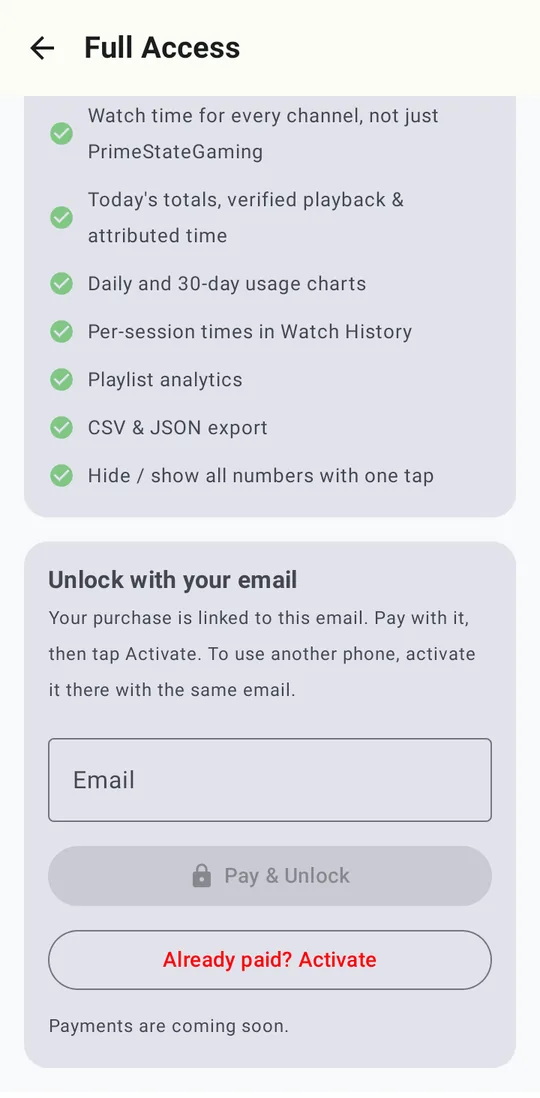
The free plan tracks every channel and shows full numbers for @PrimeStateGaming. Other channels, totals and charts show •• •• until you unlock.

  1. Tap the 👁 eye with a lock on any tab, or go to Settings → Unlock Full Access.
  2. Pick a plan: Monthly ₹33, Quarterly ₹99, Yearly ₹299 (best value) or Lifetime ₹599 one-time.
  3. Enter your email and tap Subscribe or Get Lifetime Access. Complete checkout (powered by Dodo Payments).
  4. Return to the app. It activates automatically, or tap Already paid? Activate.

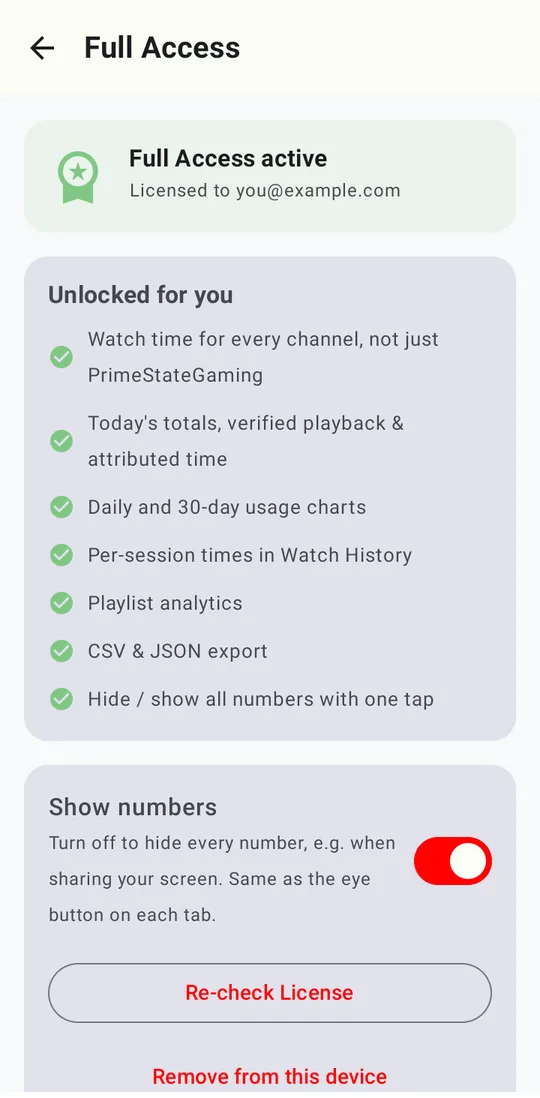
With Full Access, the eye button hides and shows every number with one tap. To cancel a subscription, open Settings → Full Access → Manage Subscription; you keep access until the paid period ends.

Unlock with your email: Pay and Unlock, Already paid? Activate
Full Access active screen

Troubleshooting

Accessibility switched itself off after an update

Some phones (especially realme / OPPO) turn an app's Accessibility service off when the app is updated. Open Settings → Accessibility → YouTube Activity Tracker and switch it on again.

"App not installed" error

An older copy signed differently is already installed. Uninstall it first, then install the new APK. This deletes the old history.

Channels show as "Unidentified Content"

Media Playback Access is off. Turn it on (step 5). Videos watched before that can be fixed from History → ⋮ → Edit Attribution.

Numbers aren't updating

Tap the refresh button on the dashboard. Check that Usage Access is still allowed (step 4) and that background activity is allowed (step 8).

Paid, but still locked

Use the exact email you paid with, wait a minute, then tap Already paid? Activate. If it says the device limit is reached, remove Full Access from an old phone in Settings → Full Access → Remove from this device.